

Thank you for presenting at the Washington Park Camera Club. We welcome presenters both in the room and from remote locations. Our meetings connect members in person and on Zoom at the same time.
We use Zoom’s Share Screen feature for all presentations. Please review the steps below to ensure a smooth experience.
Important Notes
- We do not provide projectors or screens at in-person meetings.
- In-person presentations are displayed on the room TV and shared across Zoom.
- Presenters may:
- Use their own device, or
- Send their presentation to the host in advance for assistance, and WPCC Information Technology will make the necessary arrangements.
- Zoom meeting links and credentials may change from meeting to meeting. Always confirm details with your host.
Presenting In Person
If you are presenting at the meeting location:
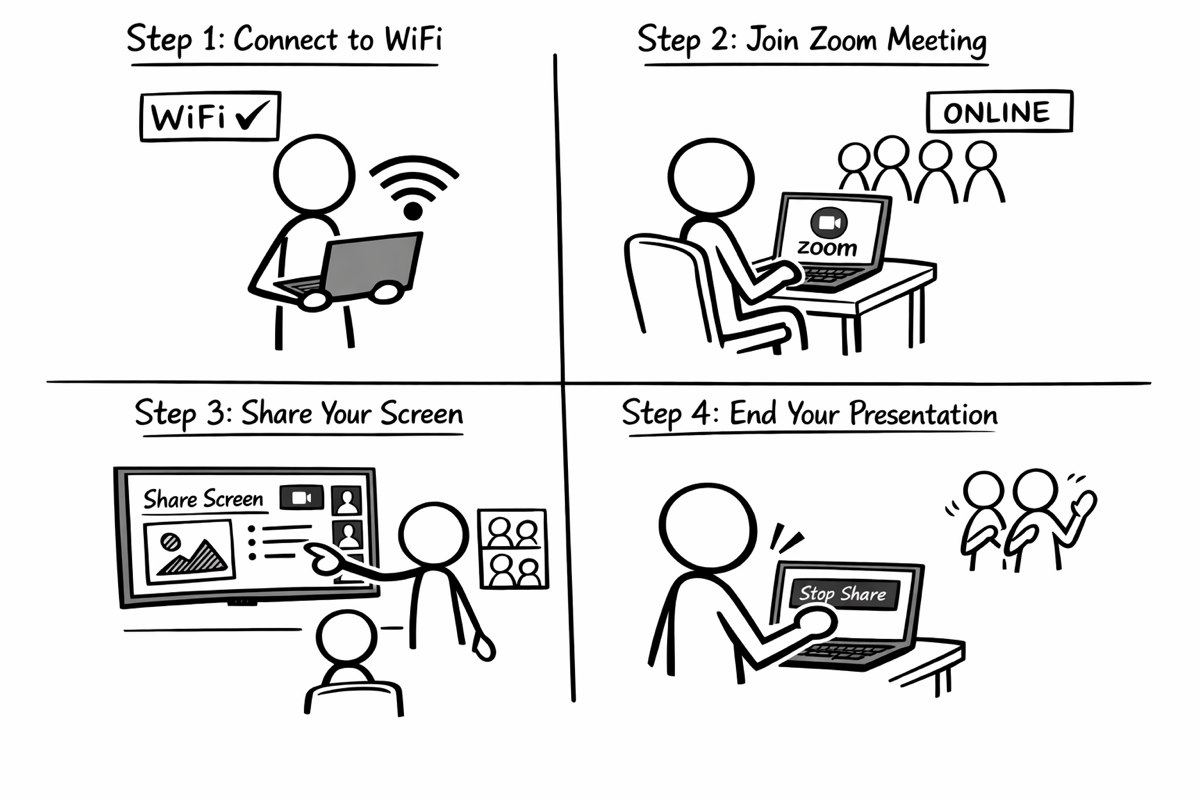
- Connect to WiFi
- Join the facility’s WiFi.
- Confirm you have access to the public internet.
- Join the Zoom Meeting
- Use the meeting credentials provided by your host.
- Even though you are in the room, you must join Zoom so your screen can be shared with remote attendees.
- Share Your Screen
- When it is time to present, click Share Screen in Zoom.
- Choose:
- Your presentation application (PowerPoint, Keynote, etc.), or
- Your entire desktop if you plan to switch between applications.
- If your presentation includes audio or video:
- Select Share System Sound before sharing.
- End Your Presentation
- When finished, click Stop Share.
Presenting Remotely (Virtual)
If you are presenting from home or another location:
- Join the Zoom Meeting
- Use the meeting credentials provided by your host.
- Share Your Screen
- Click Share Screen when it is your turn.
- Select:
- Your presentation application, or
- Your full desktop if needed.
If using audio or video:
Select Share System Sound.
- End Your Presentation
- Click Stop Share when you are done.
Tips for a Smooth Presentation
- Test your slides and internet connection before the meeting. Reach out to your host to make arrangements to test the set up ahead of time.
- Close unnecessary applications to avoid distractions.
- Keep notifications muted.
- If using video or audio, test sound in advance.
- Arrive or log in at least 10 to 15 minutes early.
If you have any questions, please contact your host or meeting facilitator. We are happy to help.
We look forward to your presentation.
